Authentication
You can protect LiMon with the web access controls your organization already uses, such as a reverse proxy or access gateway, to restrict who can reach the application. These controls can operate on their own or alongside LiMon's built-in authentication.
LiMon also provides an optional built-in authentication model to manage access within the application. Under Admin → Access, choose local sign-in accounts or directory-backed accounts, then assign Viewer, Operator, or Admin roles to control what each person can do.
LiMon sign-in accounts belong to people who use the monitoring application. They are separate from the license users discovered by polling, and synchronizing license-user details from a directory does not enable sign-in.
Choose an Access Model
Built-in authentication is off by default. Choose the policy that fits your installation:
| Access policy | What visitors can do |
|---|---|
| Everyone — no sign-in | Anyone who can reach LiMon can read monitoring data and run operator actions, subject to license entitlements. Administration requires the admin API key. |
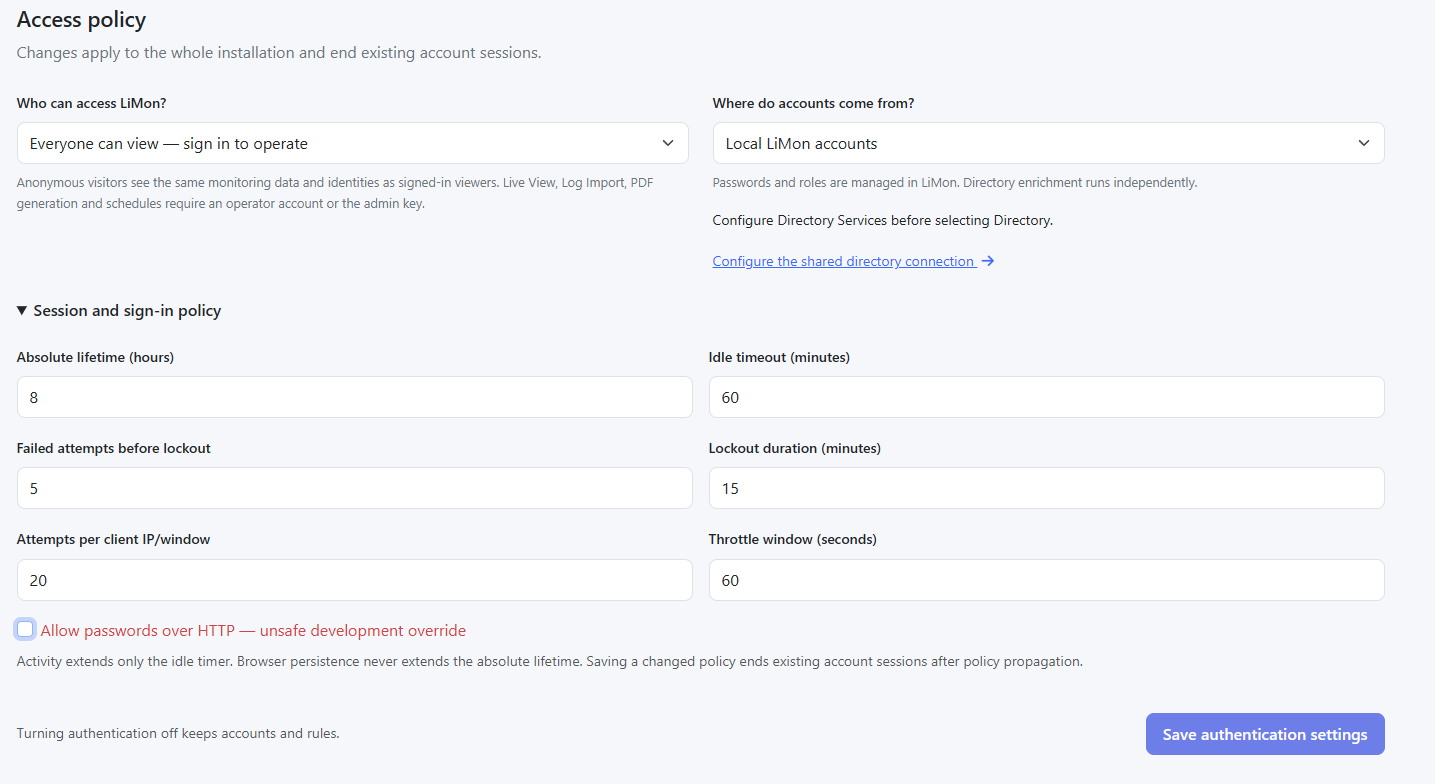
| Everyone can view — sign in to operate | Anonymous visitors have Viewer permissions. Operator and Admin actions require sign-in. |
| Signed-in accounts only | Visitors must sign in to use the application. Their role controls access. |
An identity supplied by your proxy or access gateway does not automatically create a LiMon account or assign a LiMon role.
Exactly one account source is selected at a time: Local LiMon accounts or Organization directory. Switching to Directory retains local accounts, but only the selected source can sign in. Turning authentication off retains accounts and directory role rules.
Sign In to LiMon
When the installation uses Signed-in accounts only, users must sign in before accessing the frontend. With Everyone can view — sign in to operate, users can continue as anonymous Viewers; sign-in is required for Operator and Admin actions.
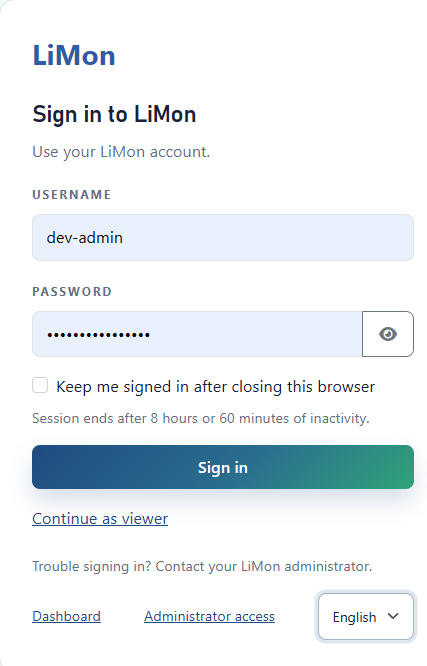
Enter the username and password for the installation's selected account source, then choose Sign in. Your role determines which pages and actions you can use. Contact your LiMon administrator if you need an account or help signing in.
Keep me signed in after closing this browser preserves sign-in across browser restarts, subject to the same session limits. The form shows the configured maximum lifetime and idle timeout; browser persistence does not extend them. See HTTPS and Sessions.
Roles
| Role | Access when account authentication is enabled |
|---|---|
| Viewer | Read monitoring data, existing reports, and license-user impact summaries. Contact details, audience exports, and announcements are unavailable. |
| Operator | Viewer access plus Live View, Log Import, PDF generation, and report scheduling. Can review license-user audiences, export or email user lists, and send confirmed announcements when the required directory and license capabilities are available. |
| Admin | Operator access plus sign-in to the Admin UI to manage LiMon: servers, applications, sites, feature mappings, settings, accounts and access policy, notification routes, and delivery configuration. |
Roles grant permissions; platform tier, subscription state, and directory availability still determine which features can be used. Any role can receive an assigned monitoring notification or existing report when its account is active, has a valid email address, and has not muted the assignment. User lists containing contact details require Operator or Admin recipients.
Set Up Local Accounts
Local accounts are available on Standard and Professional.
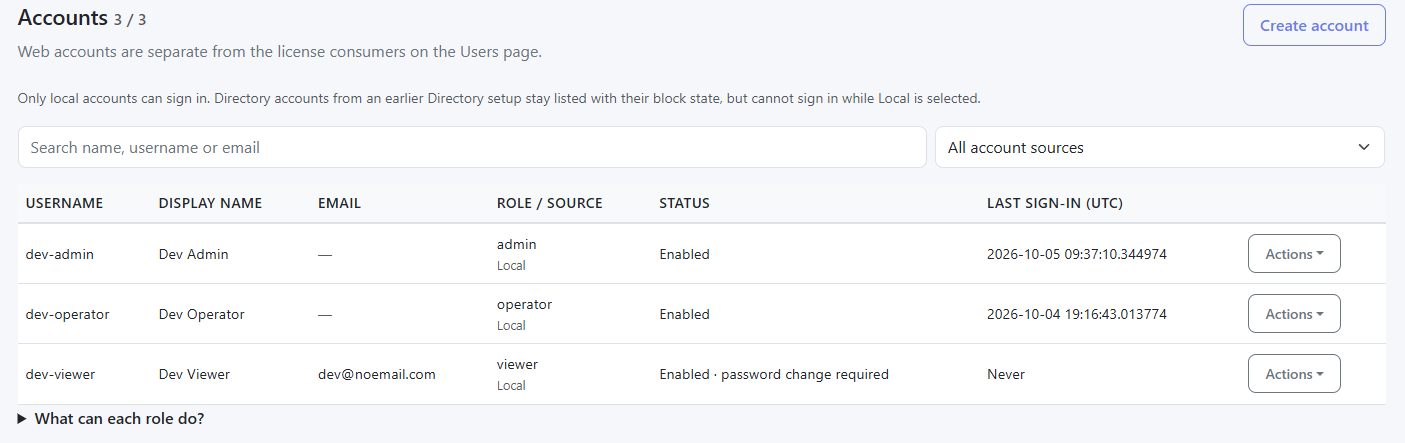
- Open Admin → Access using the admin API key.
- Under Accounts, choose Create account. Enter a username, display name, role, and temporary password of at least 12 characters. Add an email address if the account should receive notifications or reports.
- Keep an active local Admin account available before restricting access. LiMon prevents disabling or demoting the last active local Admin.
- Under Access policy, choose Local LiMon accounts and the required access mode, then save.
- Sign in with a local account. Its temporary password must be changed at first sign-in.
Disabling an account or resetting its password revokes its sessions. Changing the access policy ends existing account sessions after the policy propagates.
Set Up Directory Sign-In
Pro Sub
Directory sign-in requires Professional with an active subscription. It supports Active Directory, OpenLDAP, FreeIPA, and a supported Custom LDAP configuration.
- Configure the shared connection under Admin → Settings → Directory Services. Prefer LDAPS or StartTLS with certificate validation.
- Open Admin → Access. Under Who can access LiMon? choose the access mode, and under Where do accounts come from? choose Organization directory.
- Under Directory role rules, decide which role each directory user gets:
- Any authenticated directory user is the role for everyone who can sign in to the directory: No access unless a group rule matches, Viewer, or Operator.
- Group rules give a role to the members of one directory group, identified by its DN, for example
CN=LiMon Admins,OU=Groups,DC=example,DC=com. The Admin role can only be granted through a group rule. - A user who matches several rules gets the highest role.
- Under Test a directory account, enter a real directory username and password, then click Test sign-in and save. LiMon saves the policy only if that account signs in successfully.
The test checks the connection, user search, group existence, password bind, and resolved role, so you see which role the account would get before anyone depends on it. A failed test saves nothing. Passwords are cleared from the form after each test or save.
Directory account rows appear after first sign-in. Identity, email, and role come from the directory, and group rules are evaluated at sign-in. The account Actions menu can block or unblock access and revoke sessions.
Directory outages prevent new directory sign-ins. Existing sessions retain their normal expiry. The admin API key remains available for recovery in every access mode.
Plan ahead for a maintenance lapse
If Professional maintenance (the subscription) expires, new sign-ins through directory accounts are blocked, including Directory Admin accounts. Already-open sessions retain their normal expiry. Admin → Access warns when maintenance is approaching expiry or is inactive. If access is already interrupted, use the admin API key to change the account source or policy.
Renew maintenance before expiry, or prepare local accounts, switch the account source to Local LiMon accounts, and verify sign-in before maintenance lapses. You can also change the access policy in advance: Everyone can view — sign in to operate preserves anonymous Viewer access, while Everyone — no sign-in allows monitoring and operator actions without account sign-in. Administration remains available through the admin API key. Choose the policy that fits your organization's access requirements; allowing anonymous viewing alone does not restore directory sign-in for operators.
Directory settings are retained, and directory sign-in resumes when maintenance is renewed. .
Directory enrichment and sign-in are independent
Directory sync enriches the license users shown in usage analytics and provides contact details for announcements. Directory sign-in checks credentials for access to LiMon. Enabling one does not enable the other.
HTTPS and Sessions
Serve sign-in over HTTPS. When your own proxy terminates TLS, include it in api.trusted_proxies, preserve the original Host, and configure it to overwrite X-Forwarded-Proto and X-Real-IP.
Under Admin → Access → Session and sign-in policy, configure session lifetime, idle timeout, account lockout, and attempts per client IP. Defaults are an eight-hour maximum session lifetime and a 60-minute idle timeout. Activity extends only the idle timer; Keep me signed in does not extend the maximum lifetime. Leave the development-only HTTP password override disabled on deployed installations.
Personal Account Preferences
Open Account from the signed-in user menu to review your sign-in details, save personal preferences, and manage which assigned notifications you receive.
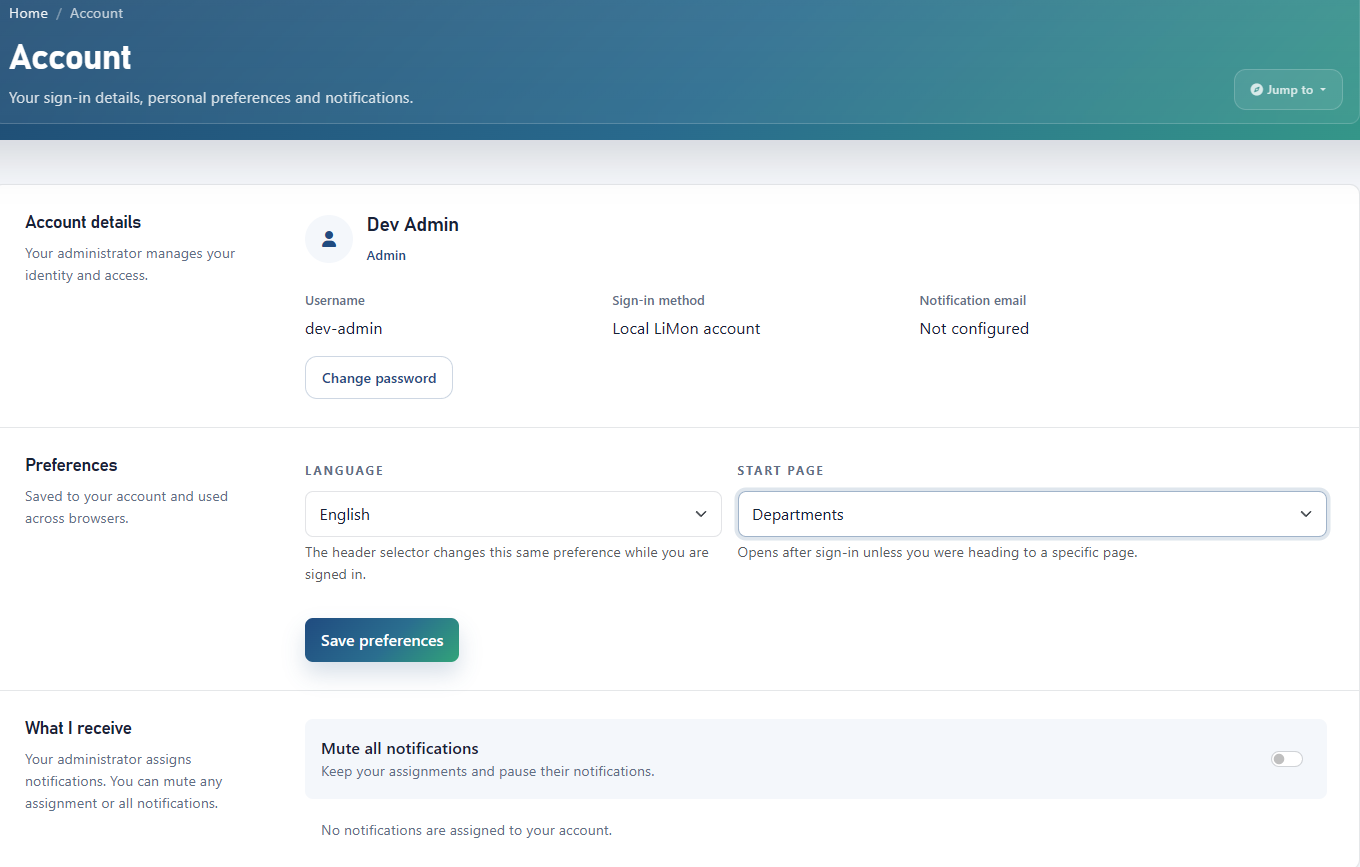
Account Details
Review your display name, username, role, sign-in method, and notification email. Your administrator manages identity and access; directory-backed details come from the directory. Local accounts can choose Change password here.
Preferences
Choose an interface Language and Start page, then select Save preferences. Local and directory accounts retain these choices across browsers. The header language selector updates the same account preference while you are signed in; interface language does not change the configured notification email language.
The start page applies when sign-in has no requested destination. Bookmarks and notification links retain their destination. Available start pages depend on your access; if a saved choice becomes unavailable, LiMon falls back to Dashboard.
What I Receive
Review administrator-assigned notifications and report schedules. Mute an individual assignment or switch on Mute all notifications to pause all of them without removing the assignments. Mute changes are saved when you change the controls, independently of Save preferences. For delivery setup and recipient eligibility, see Notifications.
Admin Sign-In and Recovery
At /admin/, choose Sign in with your account for a Local or Directory Admin account when the Admin UI and API use the same address. To connect to a different API address, use the API URL and admin API key.
The admin API key remains available in every access mode. Recover it on the host with:
Use the key to open Admin → Access and repair accounts or change the policy. Rotate it under Admin → Settings → About → API Key Management or with limon-manage rotate-api-key. The previous key remains valid for 24 hours; limon-manage revoke-previous-api-key ends that overlap immediately.
See Also
- Admin UI — day-to-day administration
- Notifications — recipients, account preferences, and announcements
- Configuration Reference — database-backed settings and import/export
- SELinux & AppArmor — host-level access controls for native packages