Notifications
Use Admin → Settings → Notifications to configure email delivery and webhook endpoints. Notification routes choose who receives automatic events. Licence-user announcements opens a separate frontend workflow for reviewing and contacting recent license users.
| Workflow | Who receives it | Where to configure it |
|---|---|---|
| Automatic notification route | Selected LiMon sign-in accounts, external email addresses, or webhook endpoints | Admin → Settings → Notifications → Notification routes |
| Scheduled report | Recipients selected for that report schedule | Frontend report scheduling |
| Email a user list | Selected LiMon sign-in accounts receive an audience CSV | Frontend license-user audience page |
| Send an announcement | Recent license users with eligible directory email addresses | Frontend license-user audience page, after preview and confirmation |
LiMon sign-in accounts and license users discovered by polling are separate audiences. Automatic routes do not discover or contact license users.
Configure Delivery
Email routes are available on Standard and Professional. Open the Email tab under Admin → Settings → Notifications to configure the SMTP relay, sender, credentials, and transport security. Use Send Test Email to confirm delivery, then save the settings.
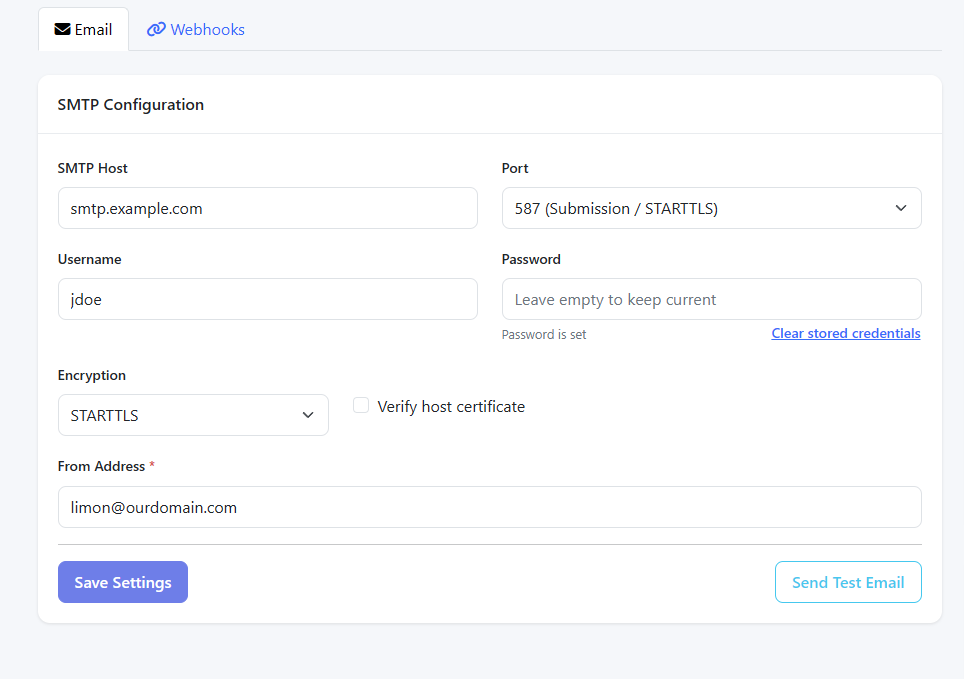
The same relay delivers automatic alerts, scheduled reports, emailed user lists, and manual announcements. Saving SMTP settings alone does not subscribe anyone to an event: create a notification route or select recipients in the relevant report or audience workflow.
For an installation without direct external SMTP access, use an internal relay reachable by LiMon.
Webhooks
Pro
Use the Webhooks tab to configure generic JSON, Slack, or Microsoft Teams endpoints. Authentication can be disabled or use a bearer token or custom header. Prefer HTTPS with TLS verification and use Send Test to verify the target.
Select webhook recipients explicitly in a notification route or an alert rule. Creating an endpoint alone does not subscribe it to the expiry digest. One route can deliver through both SMTP and HTTP.
Create an Automatic Route
- Open Admin → Settings → Notifications → Notification routes and choose New route.
- Give the route a name and select the event: for example Licence expiration digest, Licence expires today, Server problems today, or Weekly licence changes.
- Choose Estate for all monitored services, or narrow the scope to a Server or Application. New application selections include applications with an active deployment.
- Under Email · SMTP, select sign-in accounts or enter external email addresses. Under Webhooks · HTTP, select configured endpoints as needed.
- Review recipient eligibility, leave Enabled selected, and choose Save route.
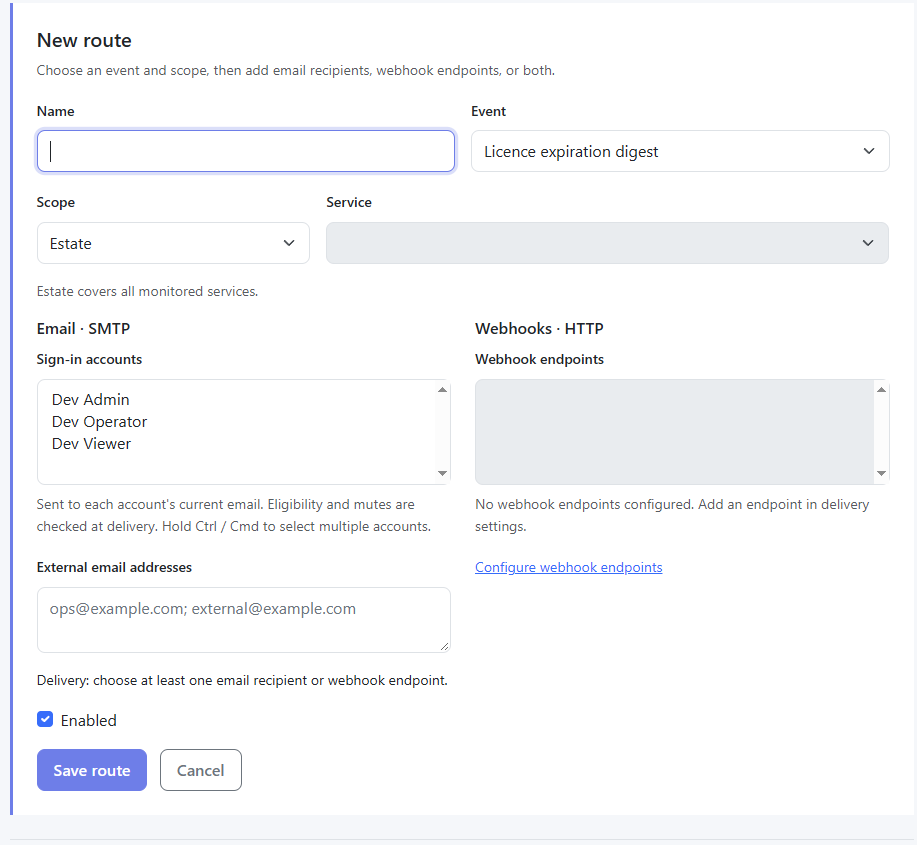
Hold Ctrl / Cmd to select multiple sign-in accounts or webhook endpoints. If no endpoints are configured, use Configure webhook endpoints to add them in delivery settings.
For example, route one application's expiry digest to its support team's LiMon accounts, with a webhook to its team channel. At delivery, account recipients are checked against their current email, active state, role permissions, and notification mutes. External addresses have no account mute preferences.
No route means no automatic delivery
Expiry digests, server-problem events, and weekly-change events have no recipients by default. Configure delivery and an enabled matching route before expecting alerts. Recipients for scheduled reports belong to each report schedule.
The expiry digest runs daily against the configured expiration intervals. Server-problem notifications report newly qualifying bad observations, rather than sending on every unhealthy poll. Weekly license changes summarize the previous Monday–Sunday period on Monday.
License-User Announcements
Pro Sub
Announcements contact recent license users directly about maintenance, interruptions, upgrades, or general service information. Sending requires Professional directory enrichment with an active subscription, enabled directory sync, email alerting, and Operator or Admin permissions. Configure SMTP delivery first.
- Choose Licence-user announcements in Admin notification settings. It opens the frontend in a new tab; sign in there if prompted. Alternatively, use Notifications on a server or application summary card.
- Select the server or application and the calendar-day lookback window.
- Review the audience, email coverage, and users with missing contact details. Only eligible directory email addresses can receive the announcement.
- Choose Send an announcement and a template. Prepare the message and preview it.
- Check the review box and confirm the recipient count before sending.
Previewing does not send email. A confirmed announcement enters the email outbox. Defaults allow up to 500 distinct addresses per announcement, split into BCC batches of 50 and paced at one email every two seconds. These limits are configurable through notifications.announcement_recipient_cap, notifications.announcement_batch_size, and notifications.email_pace_seconds.
Export or Email the User List
Operators and Admins can download the audience CSV on either tier. Without active directory enrichment, contact, copy-address, and announcement-send controls are unavailable.
The audience page can also email the CSV to selected LiMon sign-in accounts for follow-up. This delivers a list to those accounts. A Viewer can receive a username/usage list; lists containing contact details require Operator or Admin recipients. Recipients must be active and have a valid email address.
Viewers can inspect impact summaries without contact details, but cannot open the full audience page, export its CSV, or send announcements.
Review Delivery and Preferences
The Email outbox on the Notification routes page shows recent alerts, reports, user lists, and announcements, including delivery state and skipped recipients. Sent means the SMTP relay accepted the message. Temporary delivery failures retry through the durable outbox; check its status before preparing another announcement.
Webhook history appears on the Webhooks tab, with a retry action for terminal failures. Webhook delivery can repeat after an interrupted attempt; receivers that cause side effects should deduplicate using X-LiMon-Delivery-Id.
Signed-in users can open Account → What I receive to mute individual assignments or pause all notifications. The assignments remain in place, and eligibility and mutes are checked again at delivery.
See Also
- Authentication — accounts, roles, and directory sign-in
- Admin UI — settings and routine administration
- Reports — report generation and schedules
- Configuration Reference — shared delivery and announcement settings