Admin UI
The Admin UI is available at /admin/ and is the normal place to manage LiMon after the Setup Wizard has completed. This page is a representative tour, not an exhaustive operating guide. The inline help in the Admin UI and the shipped /opt/limon/docs/operational-manual.pdf contain more complete operational procedures and field-level detail.
Log in with the API URL and API key generated during setup. Routine changes are stored in the database and are picked up automatically by the API and monitor, so editing config.yml is not part of normal administration.
This is also where administrators define what users see in the frontend: monitored servers, product-level applications, feature mappings, and sites. AD/LDAP enrichment and application or feature cost data are managed here as well, so user, department, usage, and reporting views can show business context instead of only raw license-server output.
The Admin UI also links to Live View, the monitor-generated operator dashboard for recent polling status, logs, and system metrics.
Login
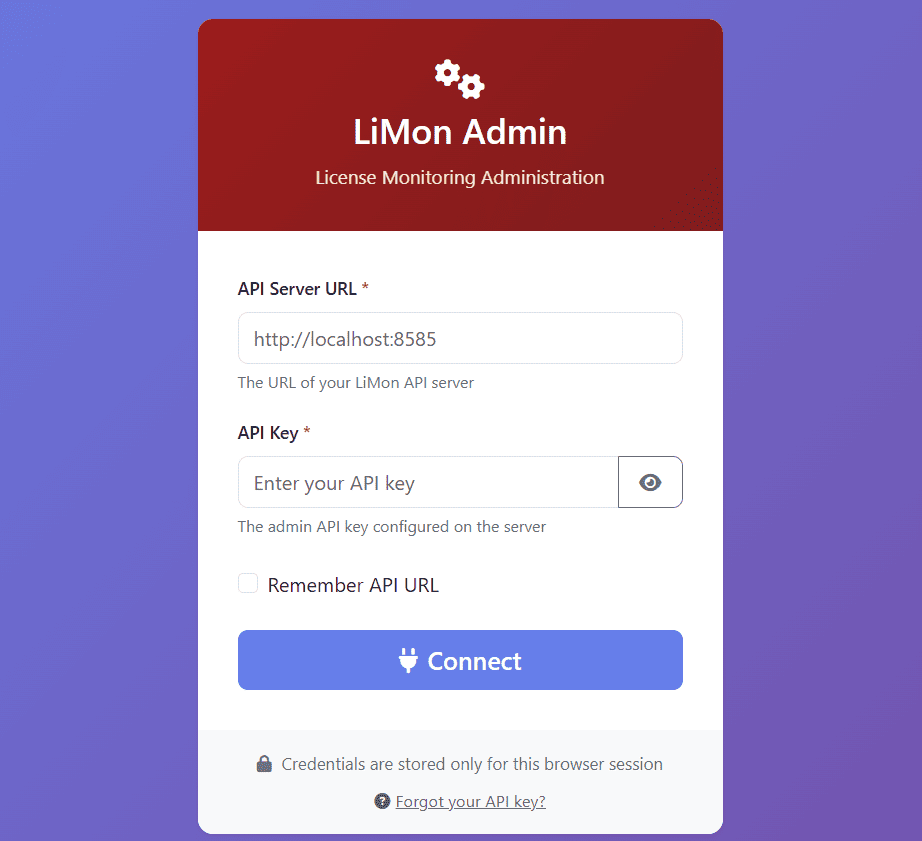
The API key is the administrator credential for protected Admin UI operations. The login form can remember the API URL, but credentials are stored only for the browser session.
Dashboard
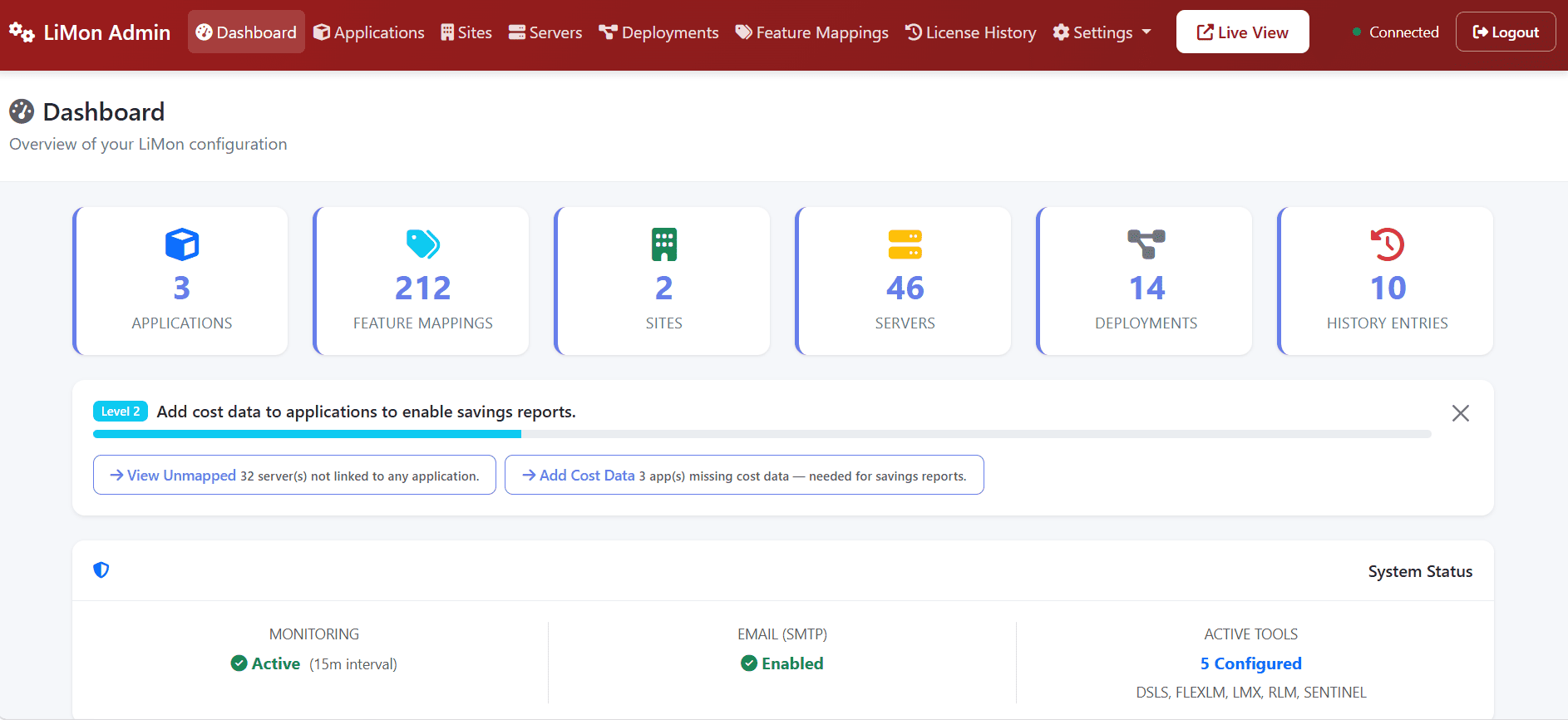
Use the dashboard as the starting point for configuration work. The top navigation moves between catalog, server, deployment, mapping, license, and settings areas; the Live View button opens the monitor-generated status page.
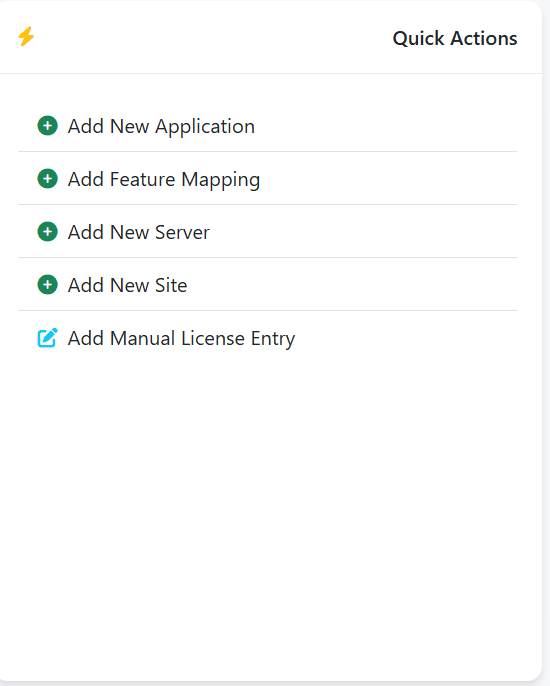
Common Workflows
| Workflow | What it is for |
|---|---|
| Adding servers | Register FlexLM, RLM, LM-X, or DSLS endpoints, usually as port@hostname, then test reachability and polling behavior. Servers can also be batch-imported, decommissioned, and reactivated. |
| Applications | Group vendor feature codes into real software products, such as MATLAB or AutoCAD, so usage, cost, and reports are product-oriented instead of token-oriented. |
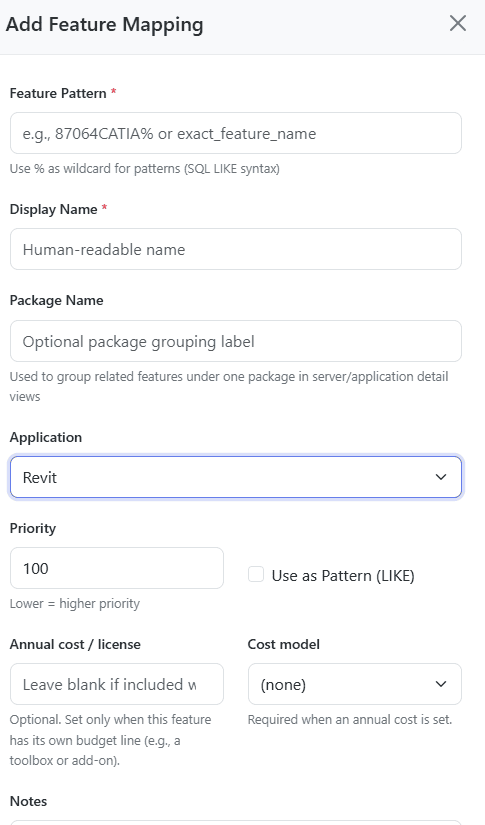
| Feature mappings | Create readable names, regex patterns, cost metadata, and mapping rules for cryptic license feature names. |
| Sites | Model locations or business units, assign servers to those sites, and enable location-aware rollups. |
The screenshots below show common examples only. The Admin UI contains additional forms, validation states, import/export paths, and contextual help that are documented more fully in the inline help and operational manual.
Applications
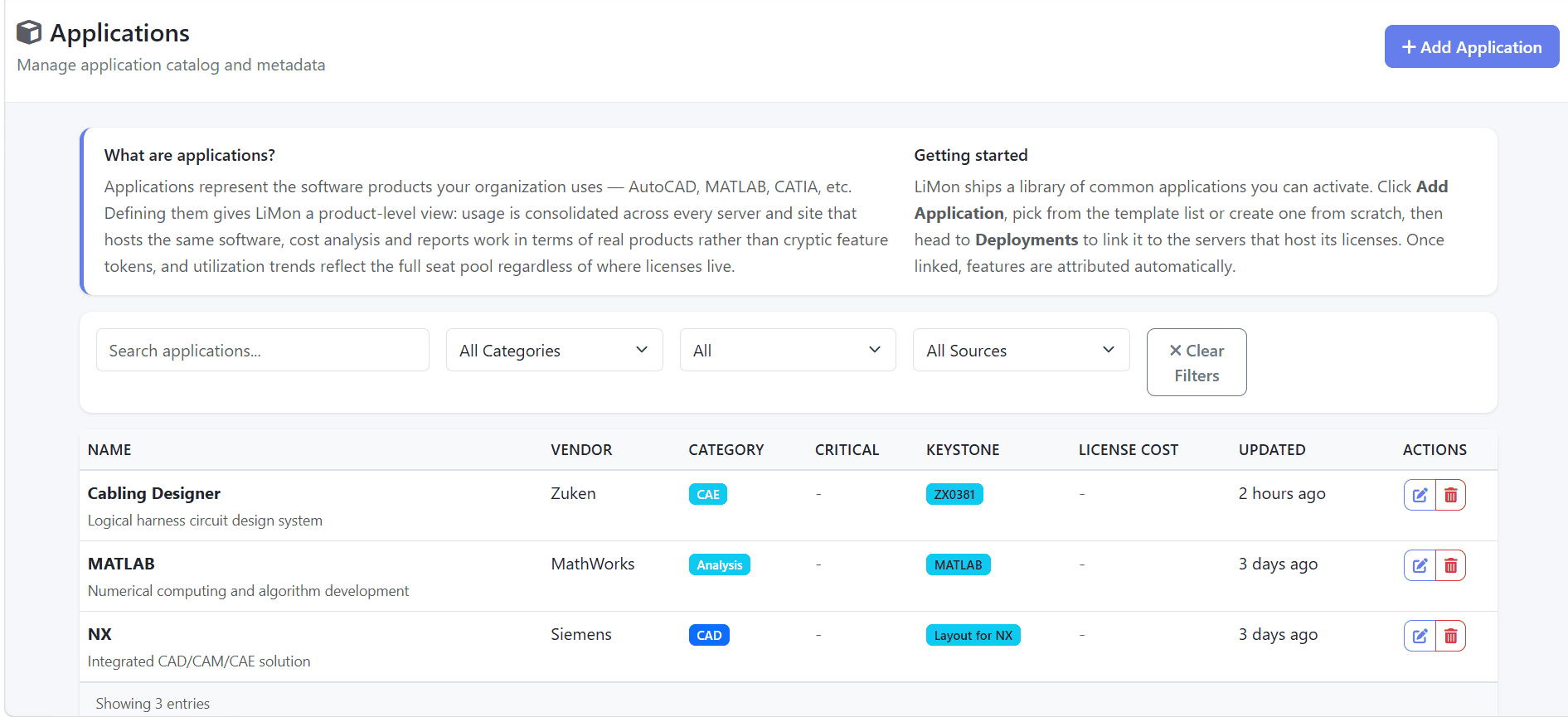
Define applications for the real software products your organization manages. LiMon can use shipped templates or custom entries, then deployments link those applications to the license servers that host them.
Feature Mappings
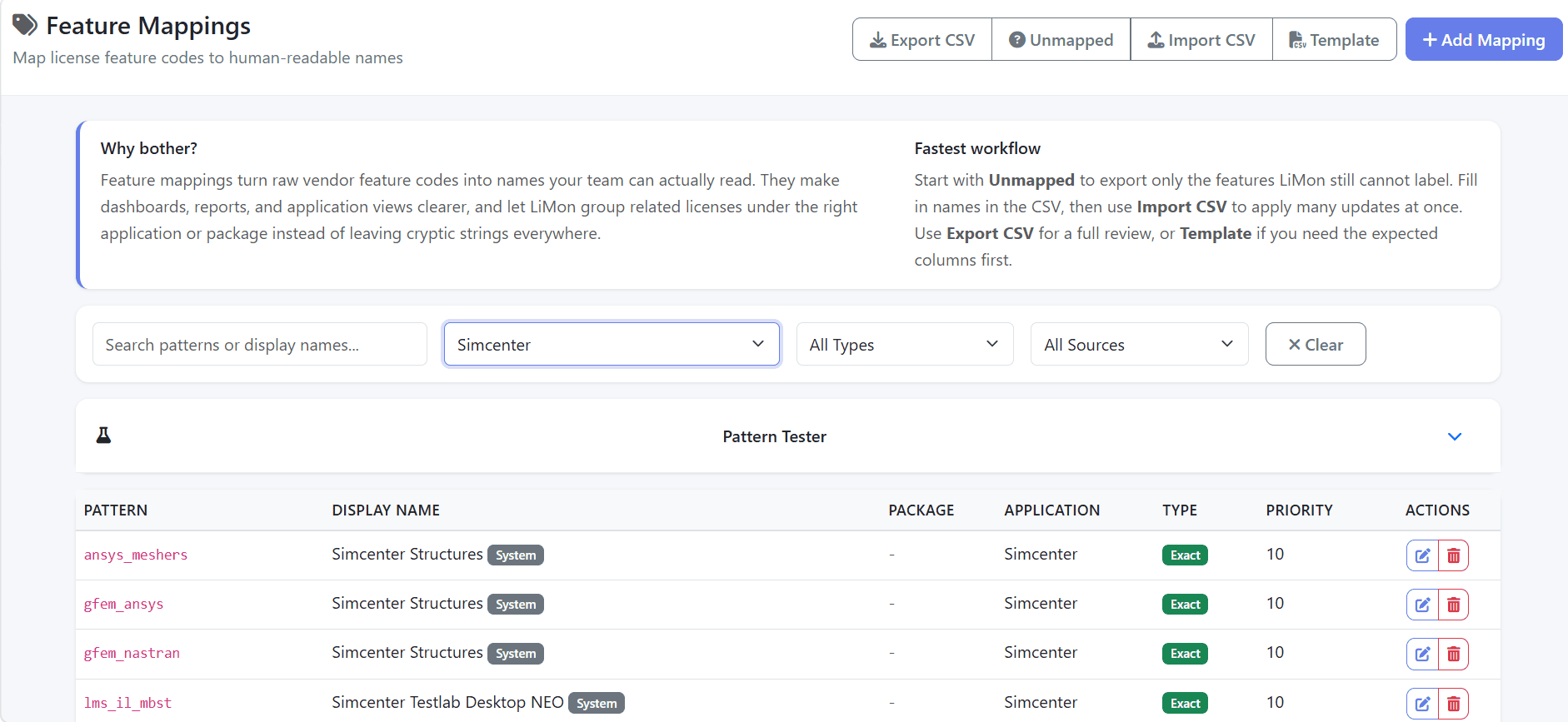
For large estates, start with Unmapped to export only the feature codes LiMon cannot label yet. Fill the CSV offline, then use Import CSV to apply many mapping updates at once.
Settings
Settings are grouped by operational concern rather than by file. The exact fields depend on the enabled platform tier and subscription state.
| Setting | Description |
|---|---|
| Monitoring | Instance name, timezone, collection interval, retention windows, thresholds, and related monitor behavior. |
| Tools | Vendor utility paths for lmutil, rlmutil, lmxendutil, and DSLicSrv, with validation. |
| SMTP | Email sender configuration and a test action for alert delivery. |
| AD/Directory Sub | Directory enrichment for users and departments, including Active Directory/Samba AD and LDAP-style providers. |
| About | Installation ID, platform/license details, schema information, and API key management such as rotation. |
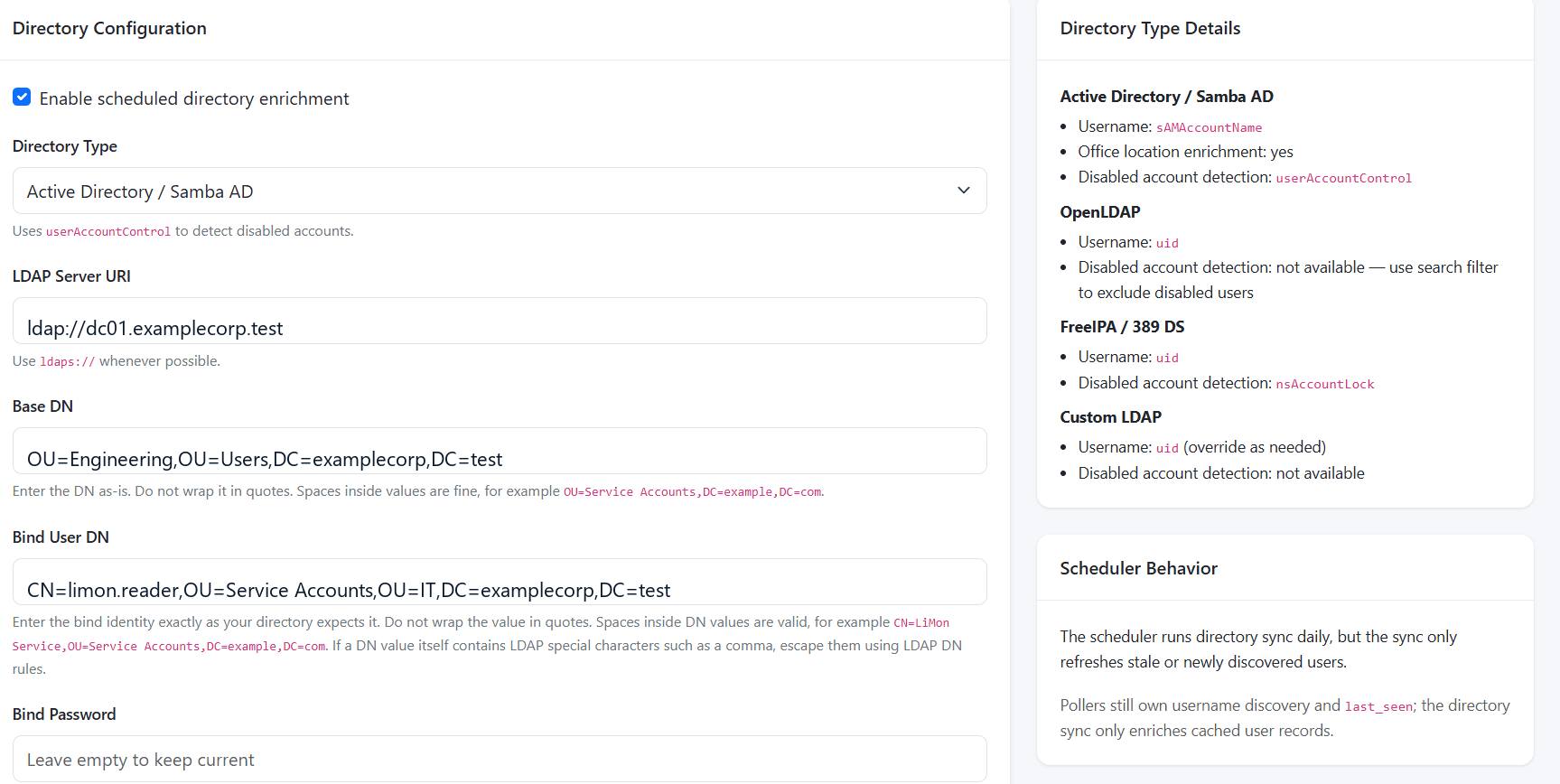
Directory enrichment adds department, office, status, and identity context to user and department analytics. Pollers still discover usernames from license activity; the directory sync enriches cached user records.
License Management
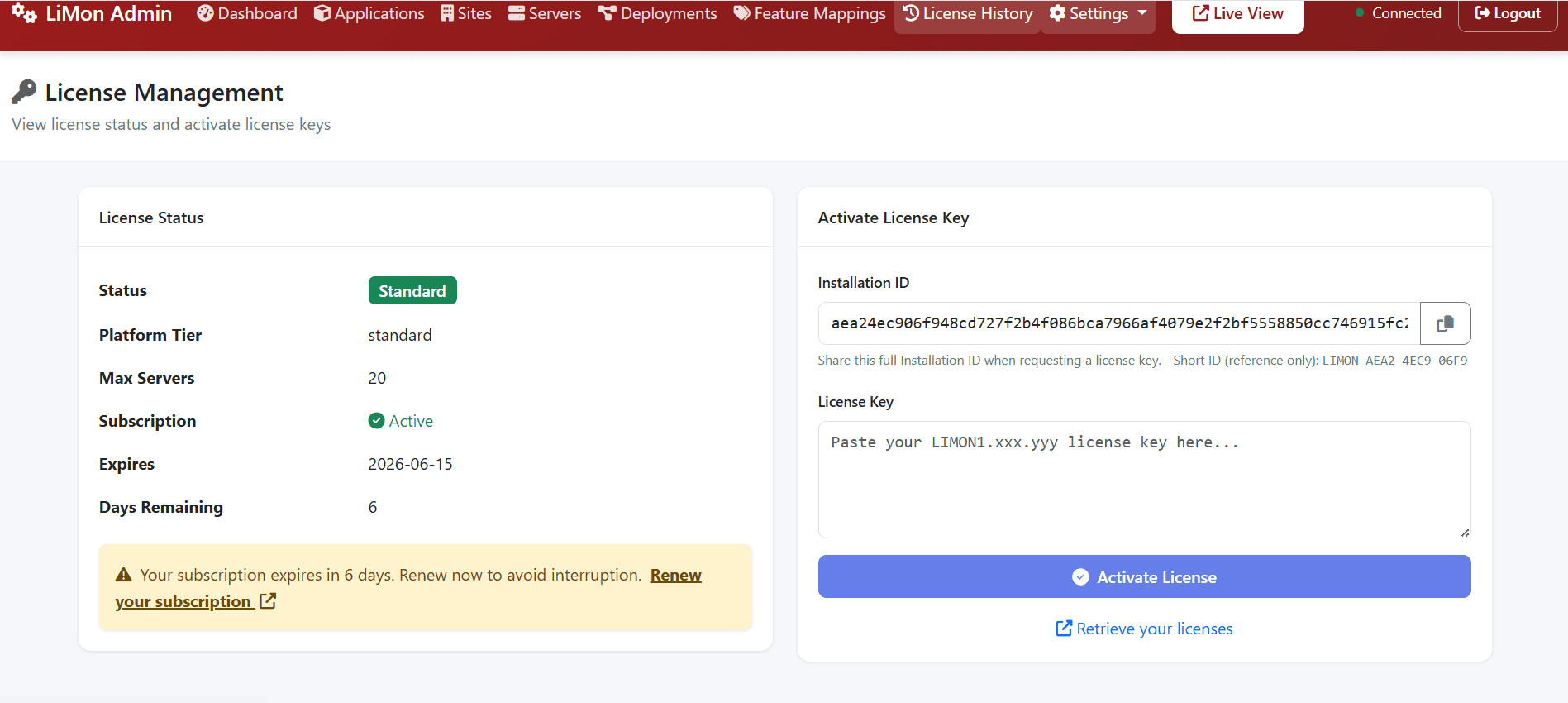
Use this screen to copy the full installation ID when requesting a license key, activate an evaluation or purchased key, and review subscription or renewal warnings.
For backup and migration procedures, follow the shipped /opt/limon/docs/operational-manual.pdf. For endpoint details, see Configuration Reference and the API Reference.